
 Free on the App Store
- Category
- Business
- Runs on
- iPhone, iPad
- Developer
- Cihat SALİK
Preview
iOS

About
Highlights
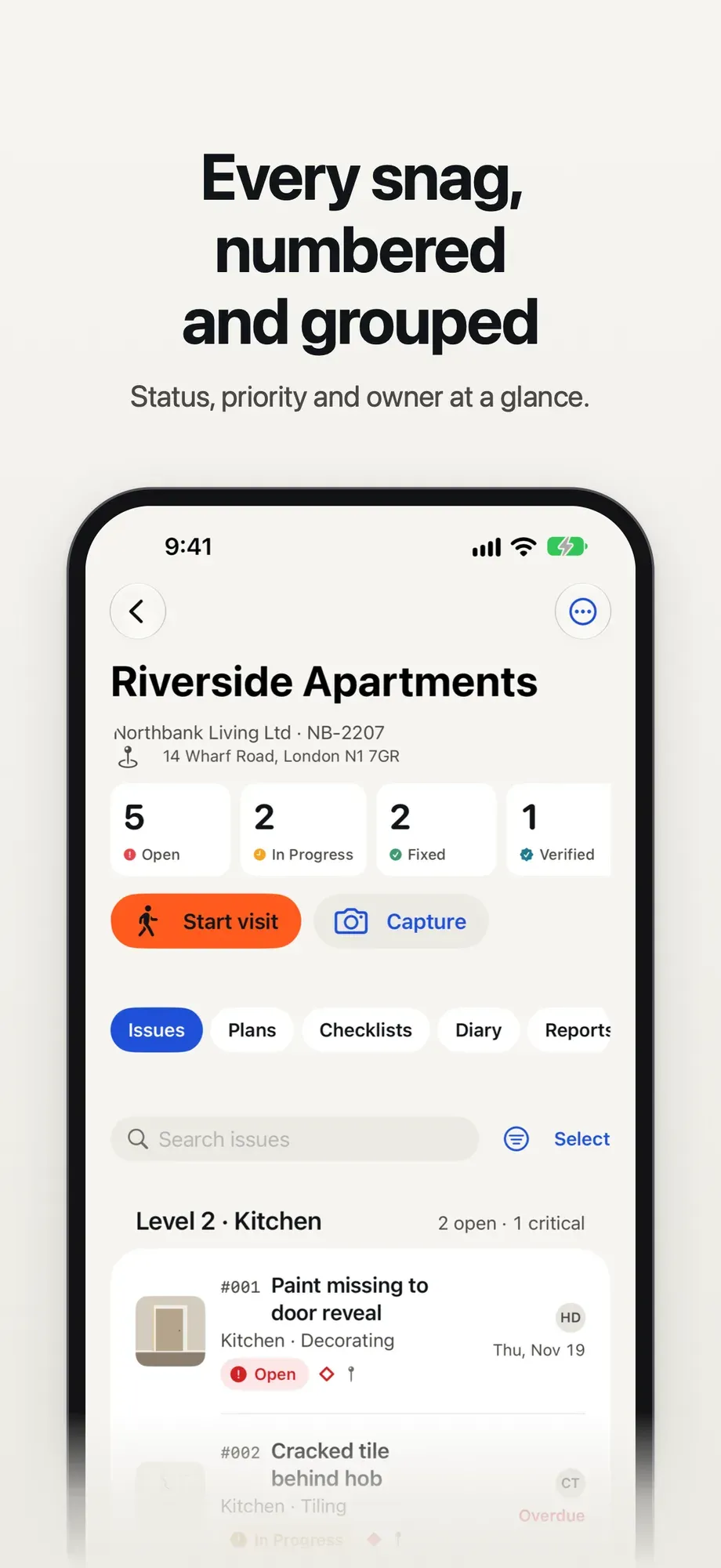
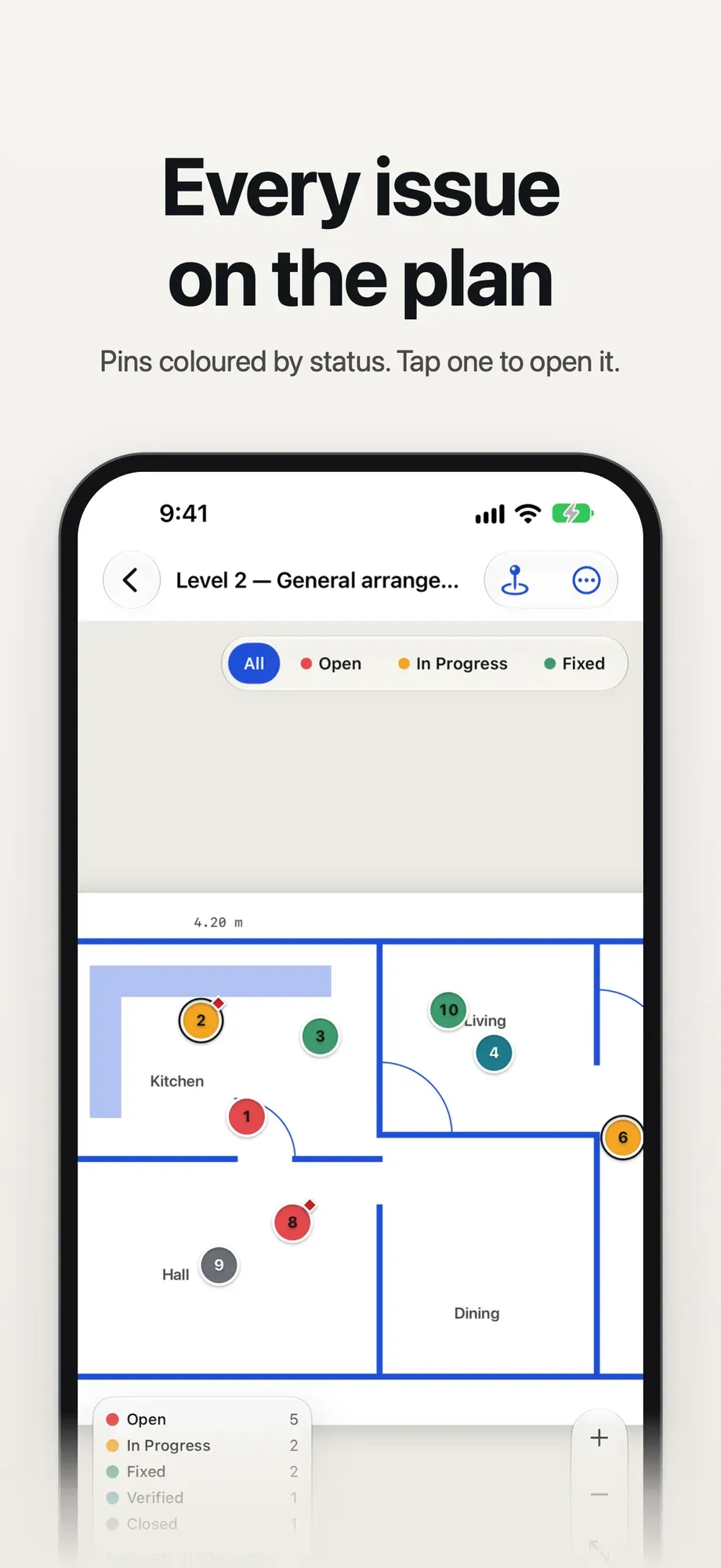
- Photo an issue and it is numbered, time-stamped and pinned on the plan
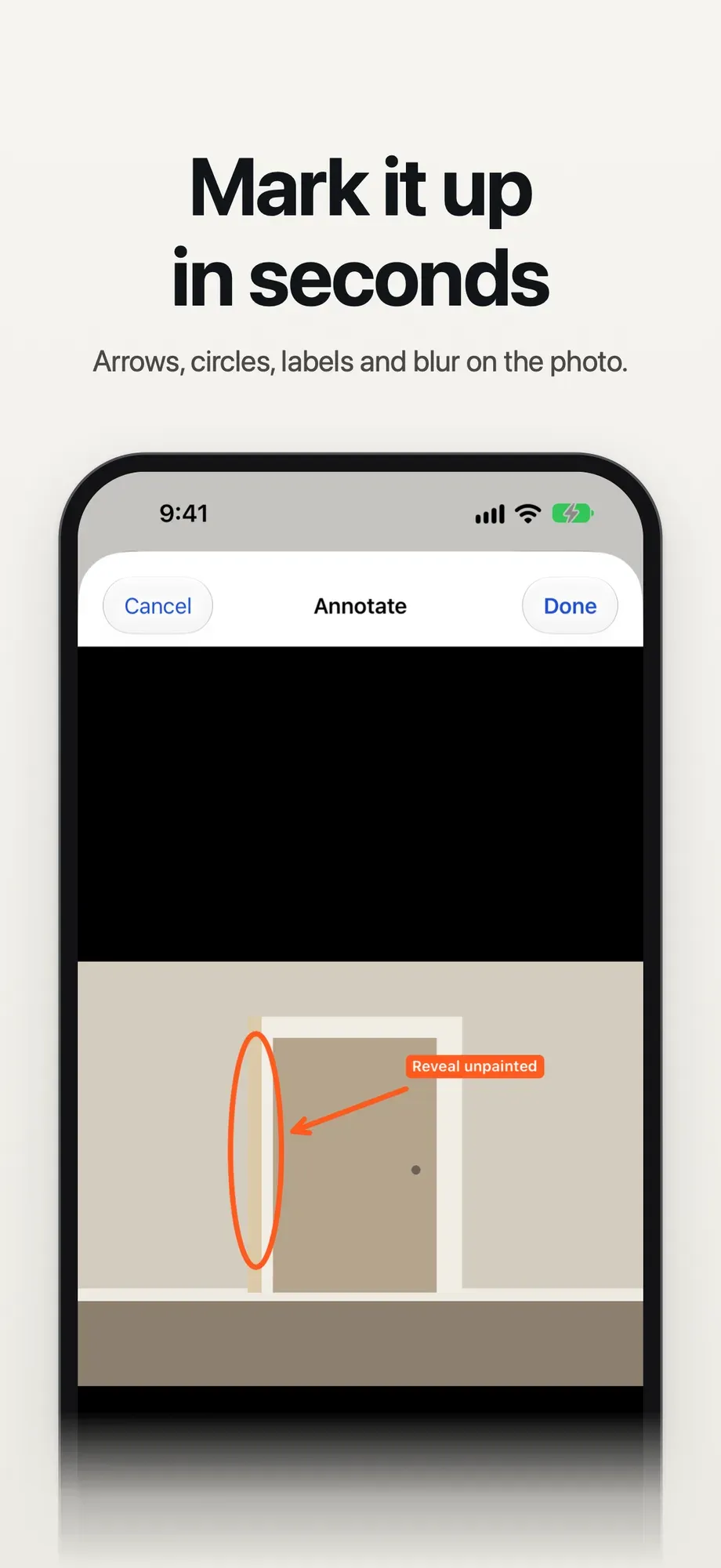
- Arrows, circles, labels and blur drawn on the photo
- Describe an issue by voice instead of typing
- PDF or image plans, or a LiDAR room scan on supported Pro devices
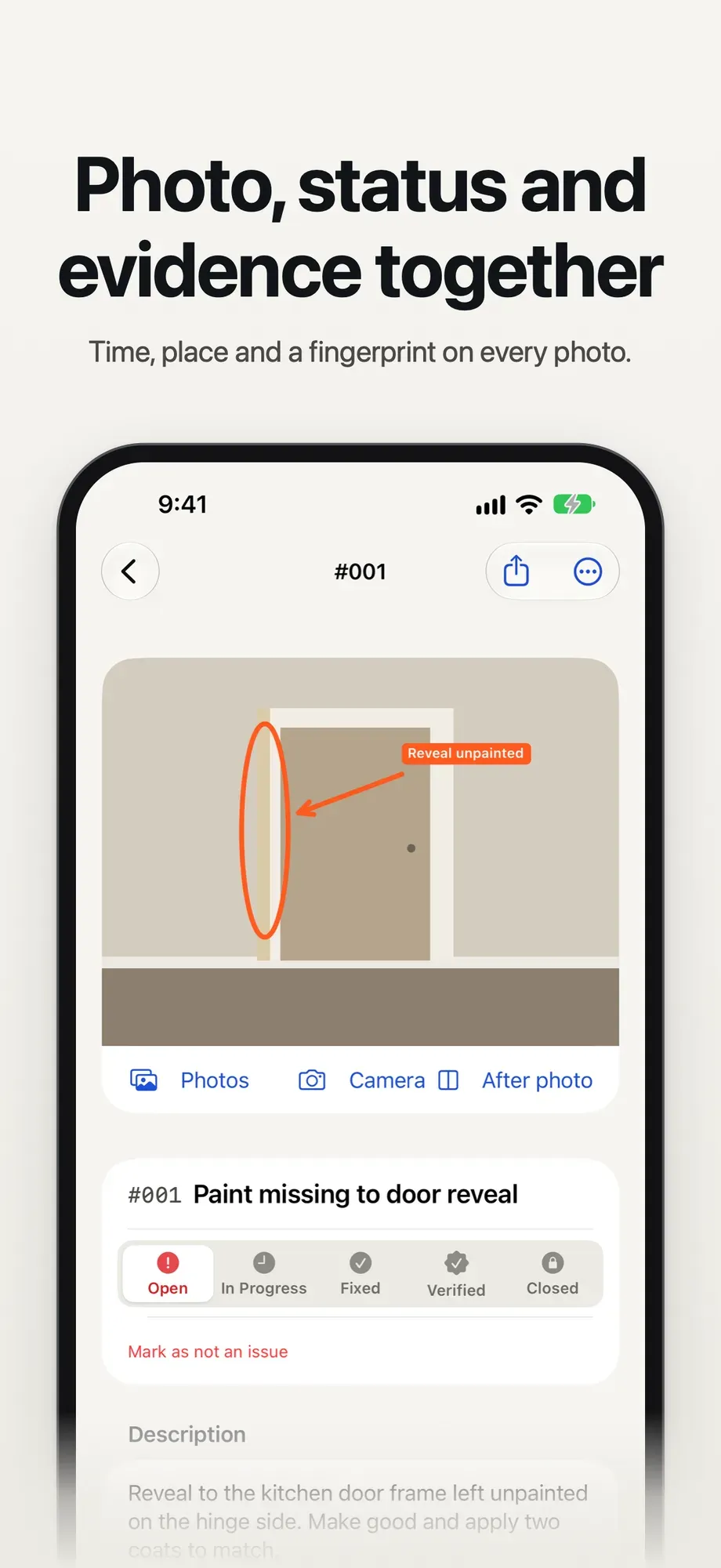
- Six statuses with the same colour on the pin, the list and the report
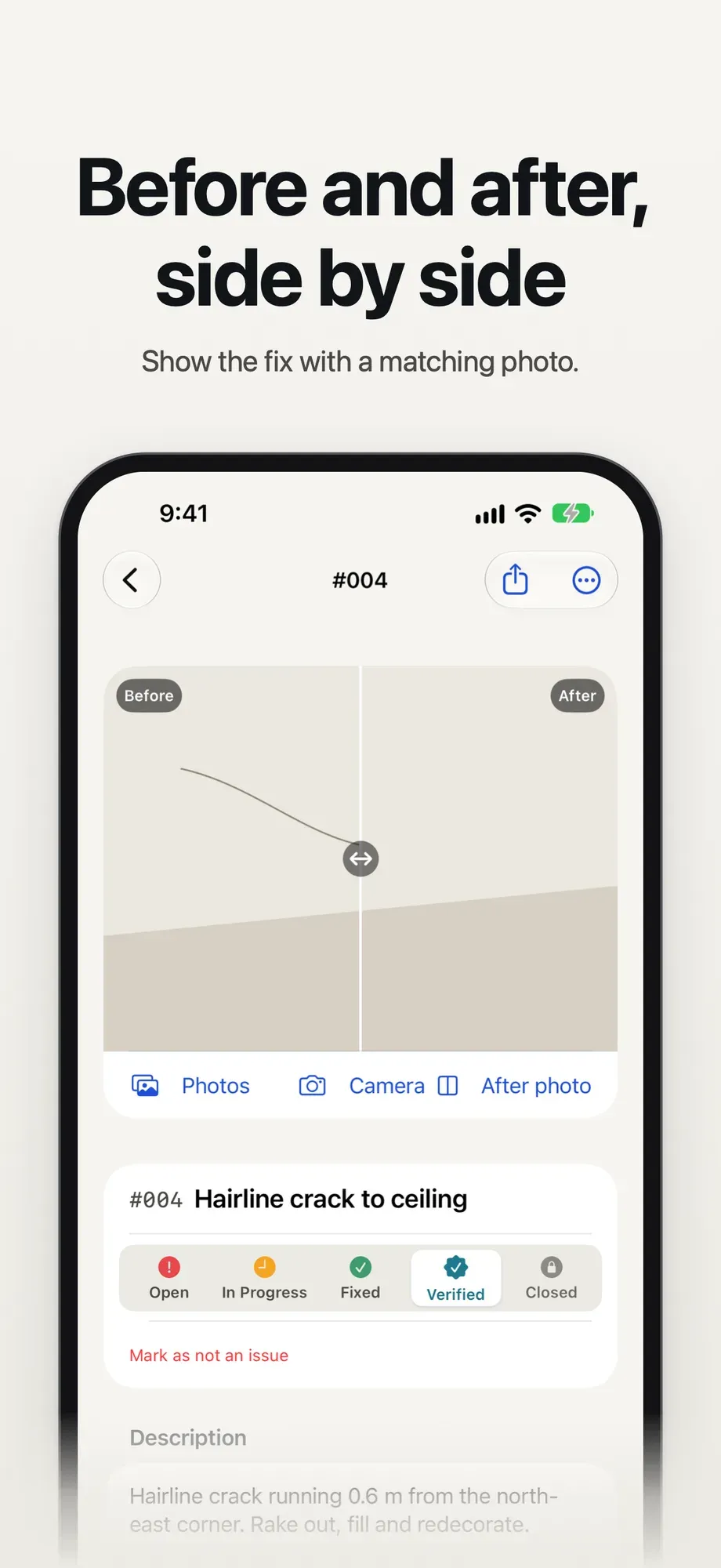
- Before and after photos, each with its time, location and a SHA-256 fingerprint
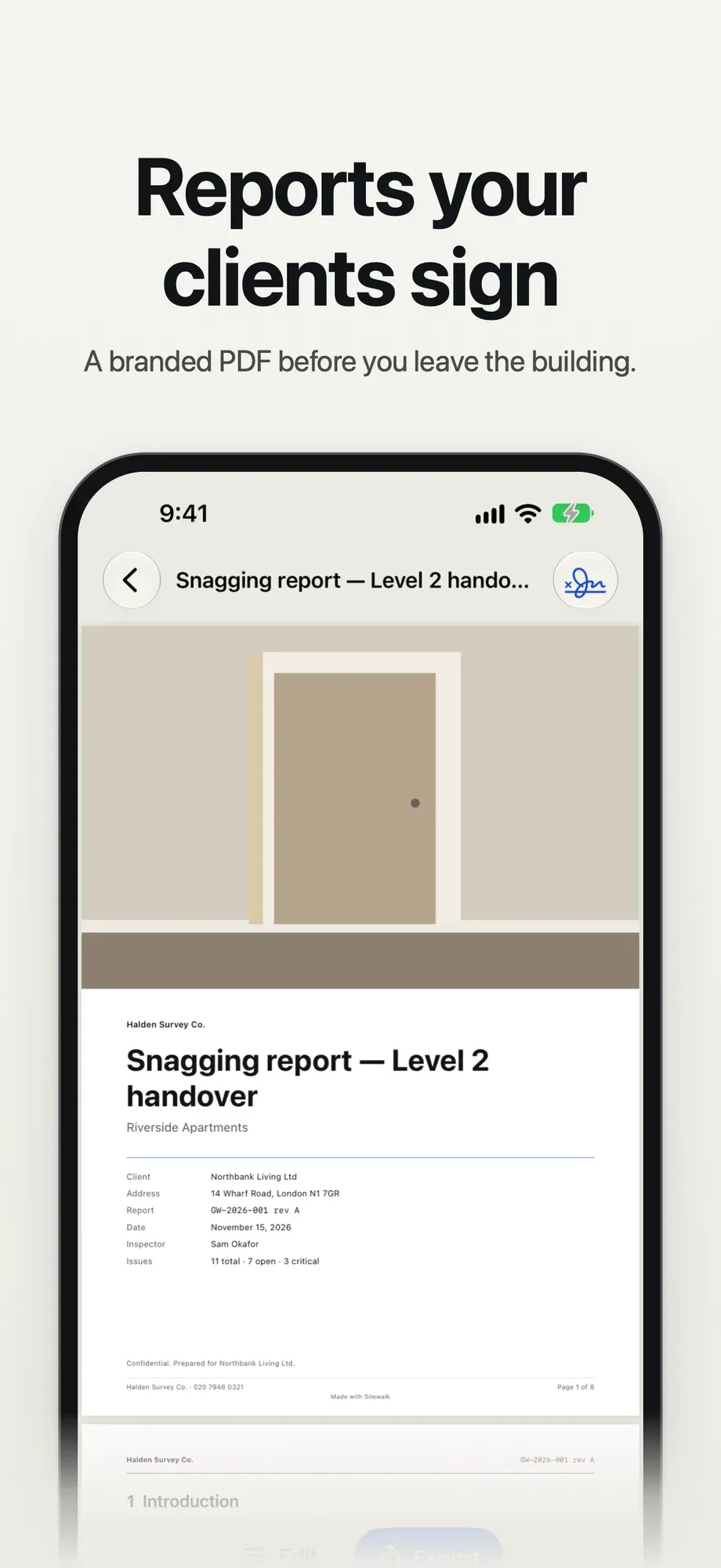
- Four report designs with your logo, numbering and on-device signatures
- PDF, CSV, photo ZIP and one task sheet per contractor
- Handover and inspection checklists that turn a failed item into an issue
- High-Visibility and Glove modes for working on site
How it works
-
Set up the project
Add the site and its address, then import a plan as a PDF or an image, photograph a paper drawing, or scan a room with LiDAR on an iPhone Pro or iPad Pro.
-
Walk the site
Take a photo of each defect. It is numbered, time-stamped and pinned on the plan. Mark it up, say what is wrong instead of typing it, and assign it to a trade.
-
Follow it through
Move each issue from Open to Fixed, Verified and Closed. Add an after photo when the work is done, so the fix sits beside the original in the report.
-
Hand over before you leave
Build the report in one of four designs, walk the client through it on the device, collect both signatures, and send the PDF, a CSV, the photos or a task sheet per contractor.
Who it is for
-
Snagging inspectors
A numbered snag list with photos, plan pins and a signed report, ready at the handover meeting instead of the next evening.
-
Builders and site managers
Punch lists split by trade, a task sheet for each contractor, and after photos that show each item closed.
-
Property managers
Move-in and move-out checks with checklists, dated photos and a report both sides sign on the spot.
Written guide
What to record for each item, how to mark up the photo, and how to get the list to the right trade
How to run a punch list or snag list walkthrough: what to record per item, how to mark up photos, sort by trade, collect sign-off and send it on.
Read the guideMore guides about Sitewalk
Questions about Sitewalk: Snag & Punch Lists
- Does Sitewalk work without signal?
- Yes. Everything is stored on the device, so capturing, building a report and exporting it all work in a basement or a new build with no connection.
- Which devices does it run on?
- iPhone, iPad and Mac. LiDAR room scanning needs an iPhone Pro or iPad Pro with a LiDAR Scanner, and turning a voice note into issue fields needs a device that supports Apple Intelligence. Everything else works on every supported device.
- Do I need an account?
- No. There is no sign-in and no server. Projects, photos and reports stay on your device, and nothing leaves it unless you export or share a file.
- What is free, and what is Pro?
- The free version holds one active project, 30 issues per project and one plan per project, with Professional reports that carry a small Sitewalk footer. Sitewalk Pro removes the limits and the footer and adds the other report designs, LiDAR plans, voice-to-issue, before and after photos, signatures and more exports. Pro is monthly, yearly or a one-time lifetime purchase.
Get Sitewalk: Snag & Punch Lists
Site inspections & PDF reports
Free tools
Free tools that fit Sitewalk
Same corner of the toy box
More apps you might like
If Sitewalk: Snag & Punch Lists is your kind of thing, these live in the same neighbourhood — all made by the same pair of hands.